Help › iPad
Measured Size on an iPad
Measured Size is a free app. You enter two measurements once. Then you shop inside the app, and every bra you open shows your size in that store's own labels. You can also use it in Safari, the iPad's web browser.
Get the app
-
Open the App Store and search for "Measured Size".
The App Store link will be here once Apple lists the app.
-
Tap "Get".
-
Open Measured Size.
The first time, it says hello and asks for two measurements: your underbust and your bust.
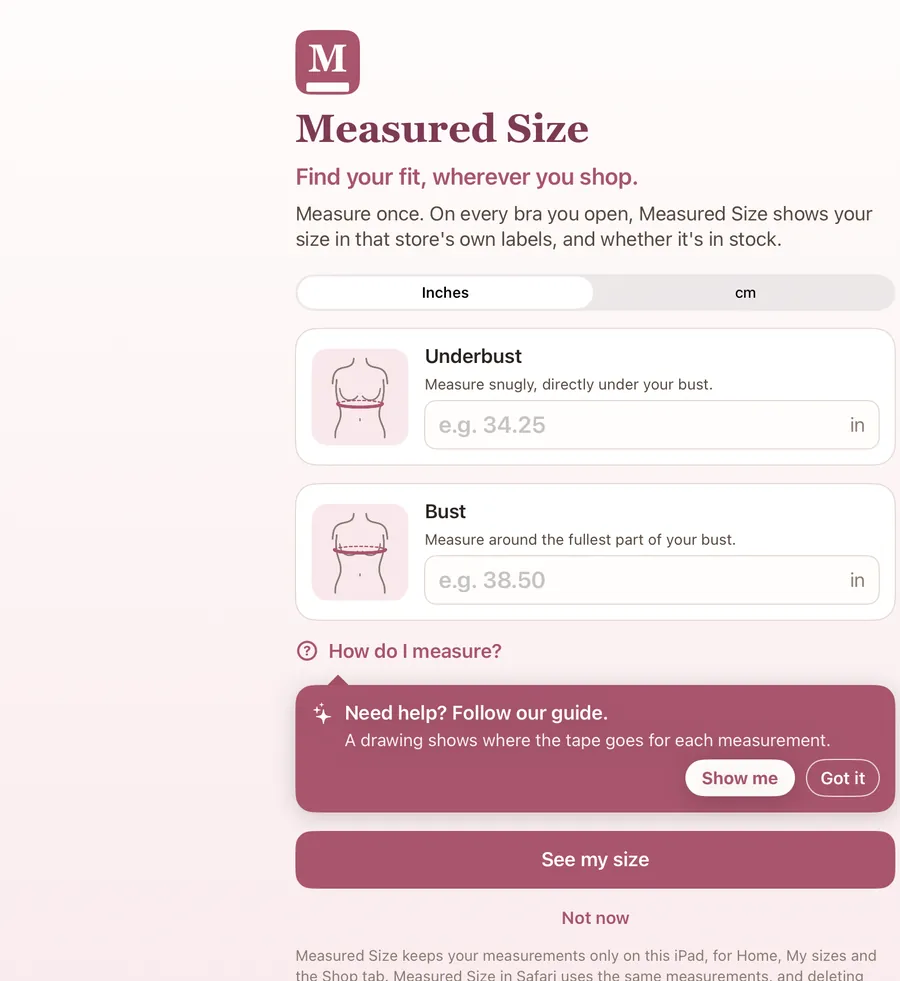
See your size
-
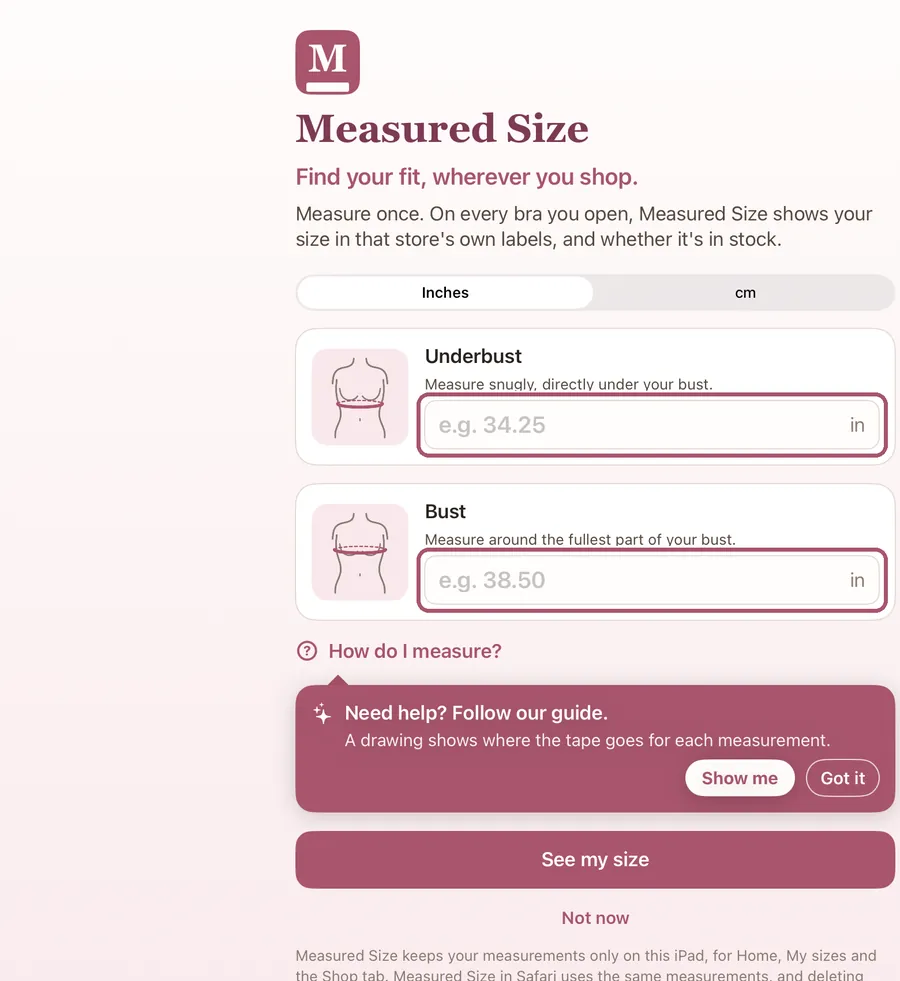
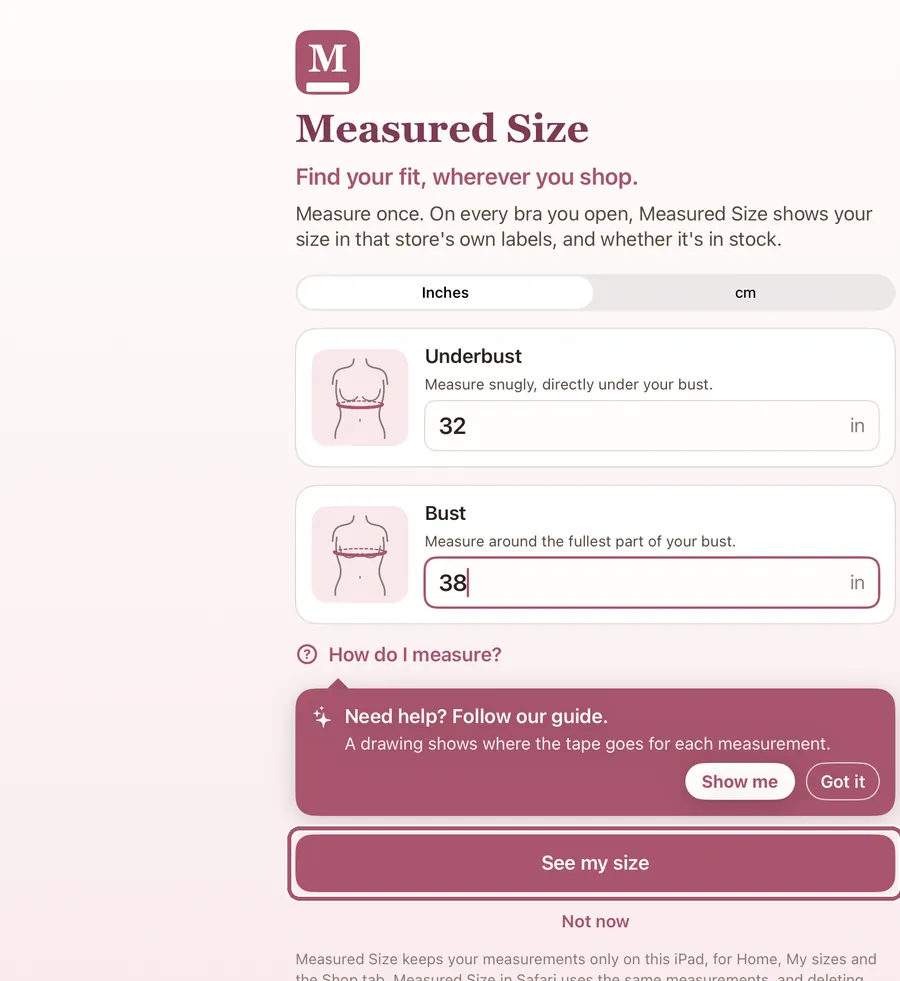
Type your underbust and your bust in their boxes.
Use a soft tape measure. "How do I measure?" shows where the tape goes, with a drawing; the tip under it, "Need help? Follow our guide.", opens it too, or tap "Got it" to close the tip. If you measured in centimeters, tap "cm" first. Decimals are fine. Not ready? Tap "Not now", under "See my size", and add them later.
-
Tap "See my size".
If the keyboard covers it, tap "See my size" just above the keyboard.
-
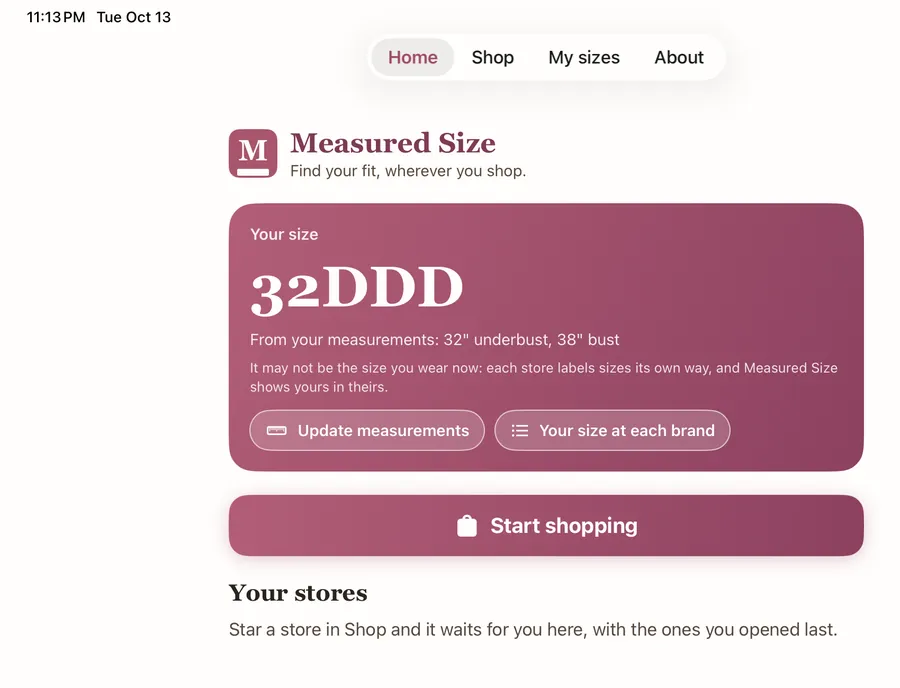
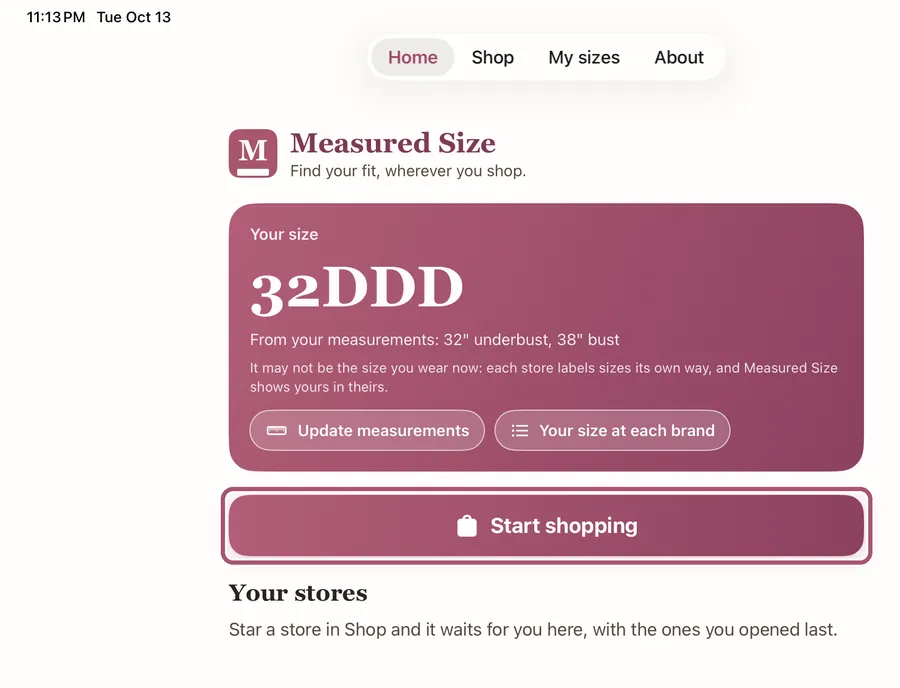
Read your size on Home.
This is your size from your measurements alone. Each store labels sizes its own way, and the Shop tab shows yours in each store's labels. "Update measurements" changes them.
-
Tap "Start shopping".
Shop with your size
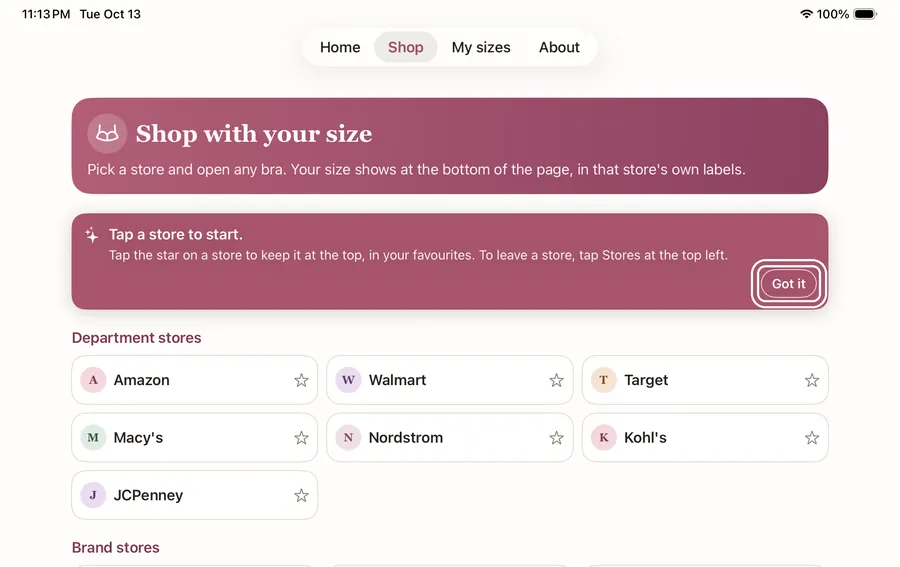
The Shop tab is a simple web browser with Measured Size built in. It needs no setup.
-
Tap "Got it".
The first time, a short tip says how to shop. It shows only once.
-
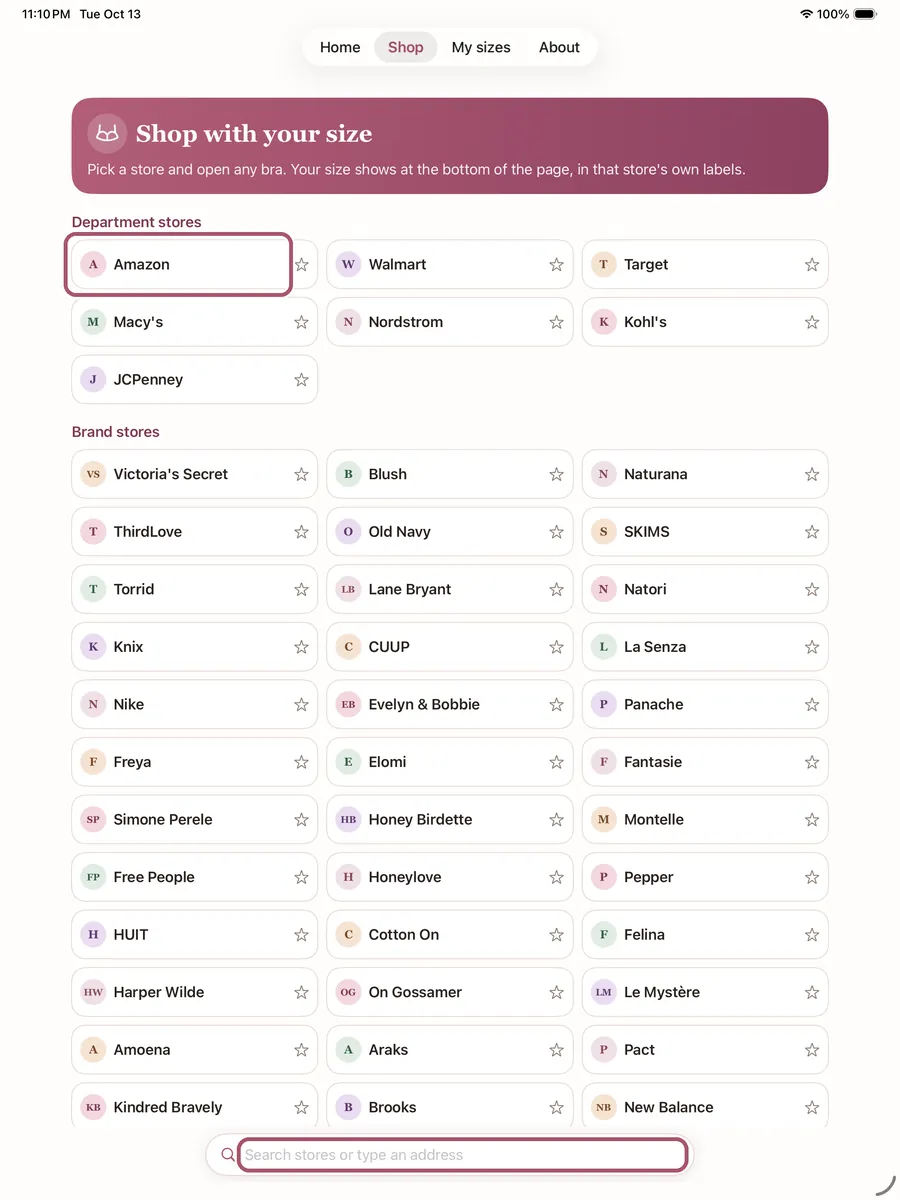
Tap a store, like Amazon, or search for one at the bottom.
Tap the star beside a store to keep it at the top.
-
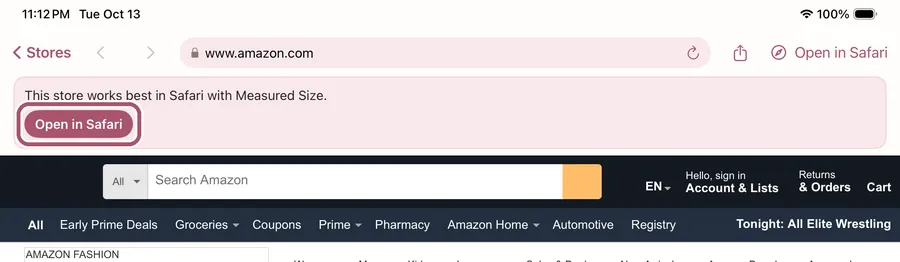
If it says "This store works best in Safari with Measured Size.", tap "Open in Safari".
It says this only on a store that works better in Safari, and none does today. The same page opens in Safari, or you can close the note for that store. On other stores, carry on below.
-
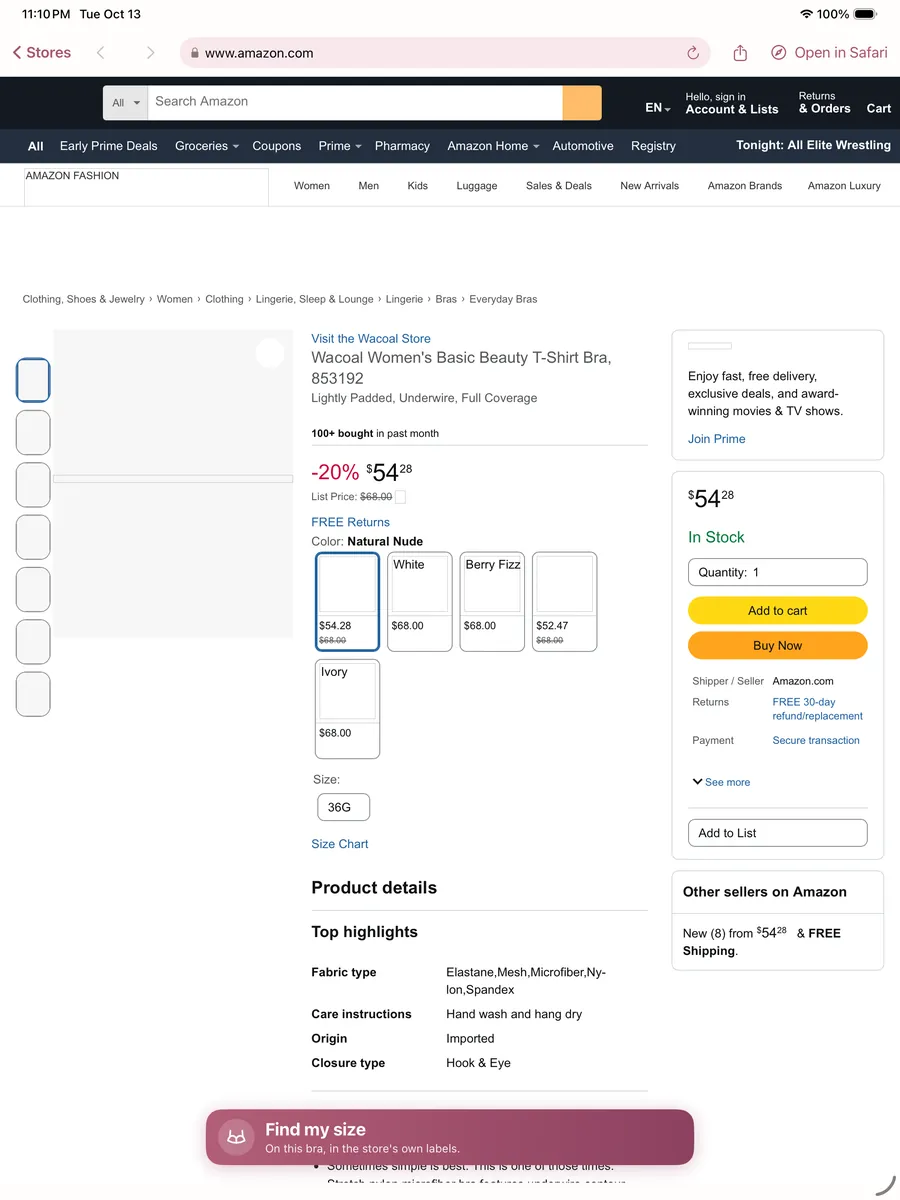
Find a bra and open its page.
A page for one bra, with its sizes, not a page of search results. Store pages in the Shop tab can look smaller than in Safari.
-
Look at the rose bar at the bottom.
It shows your size as the bra's page opens, in that store's own labels. If it says "Find my size", tap it.

-
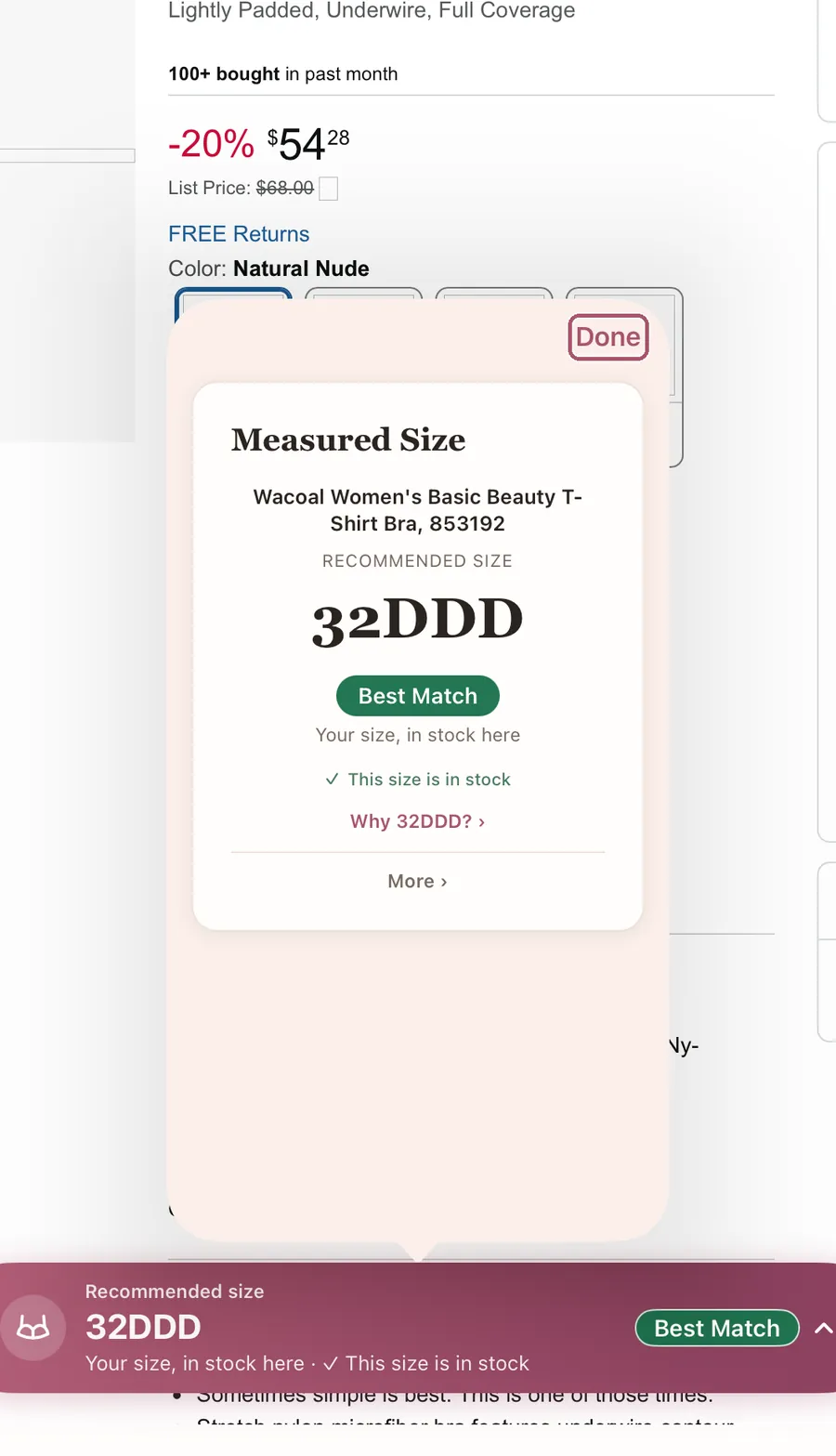
Tap the bar for the full card.
The card is explained on Reading the card. Tap "Done" to go back to the page.
-
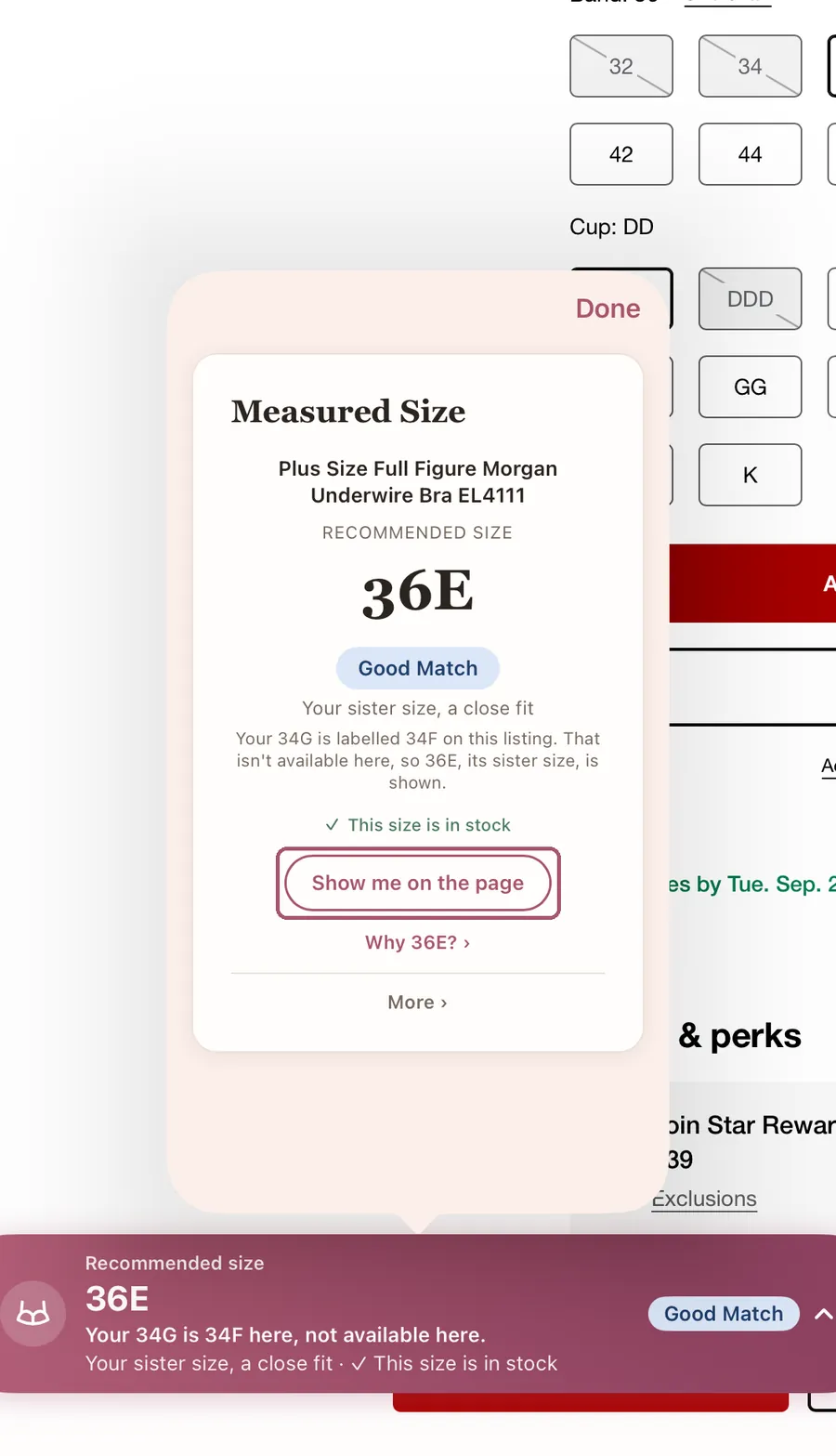
Tap "Show me on the page" to find your size on the store's page.
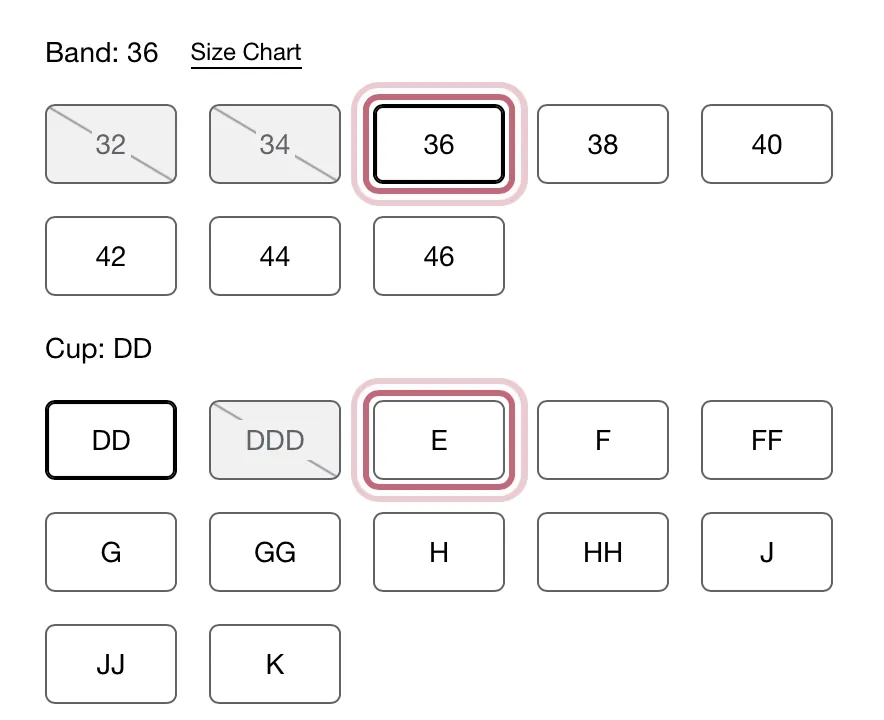
It shows when your size is a button on the store's page. Measured Size outlines that button for a few seconds. It never picks a size for you. This picture and the next are another shopper's, on a bra at Macy's.
-
Look for the outline around your size on the page.
The store may cross out a band until you pick the cup: that is the store's own page.
-
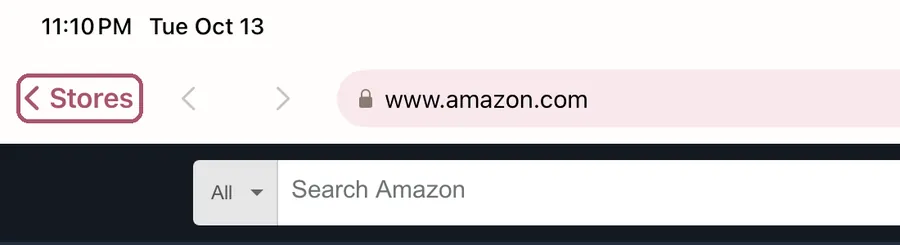
To go back to the stores, tap "Stores" at the top left.
-
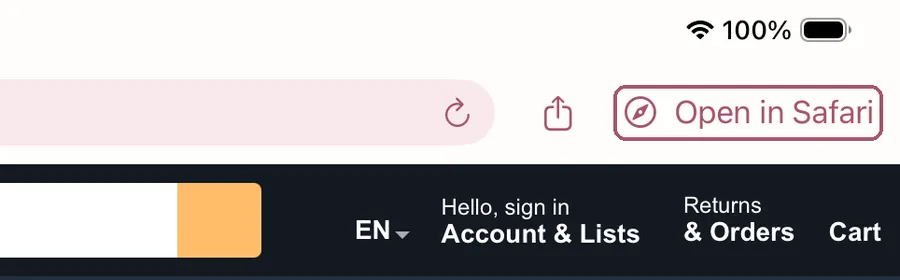
To buy, tap "Open in Safari" at the top right.
The page opens in Safari, or in the store's own app if you have it. The Shop tab keeps no sign-ins or cart, so buy there.
Your size at each brand
No listing to hand, or no signal? My sizes works with no connection.
-
Tap "My sizes".
It is at the top of the app.

-
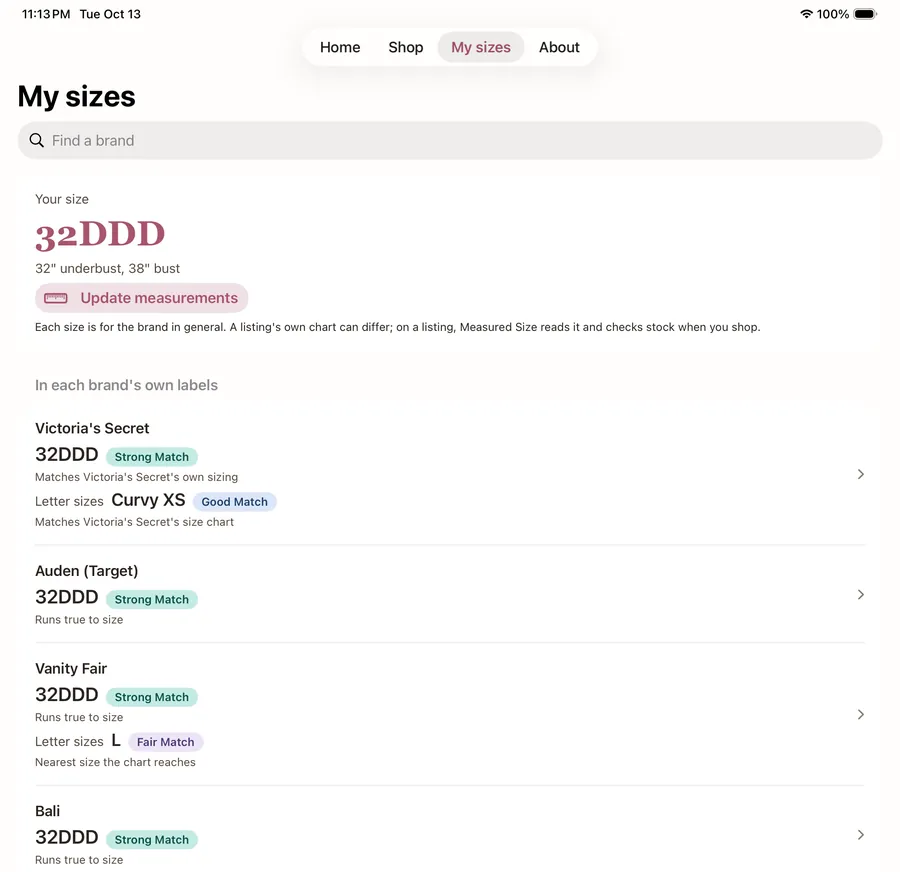
Read your size at each brand.
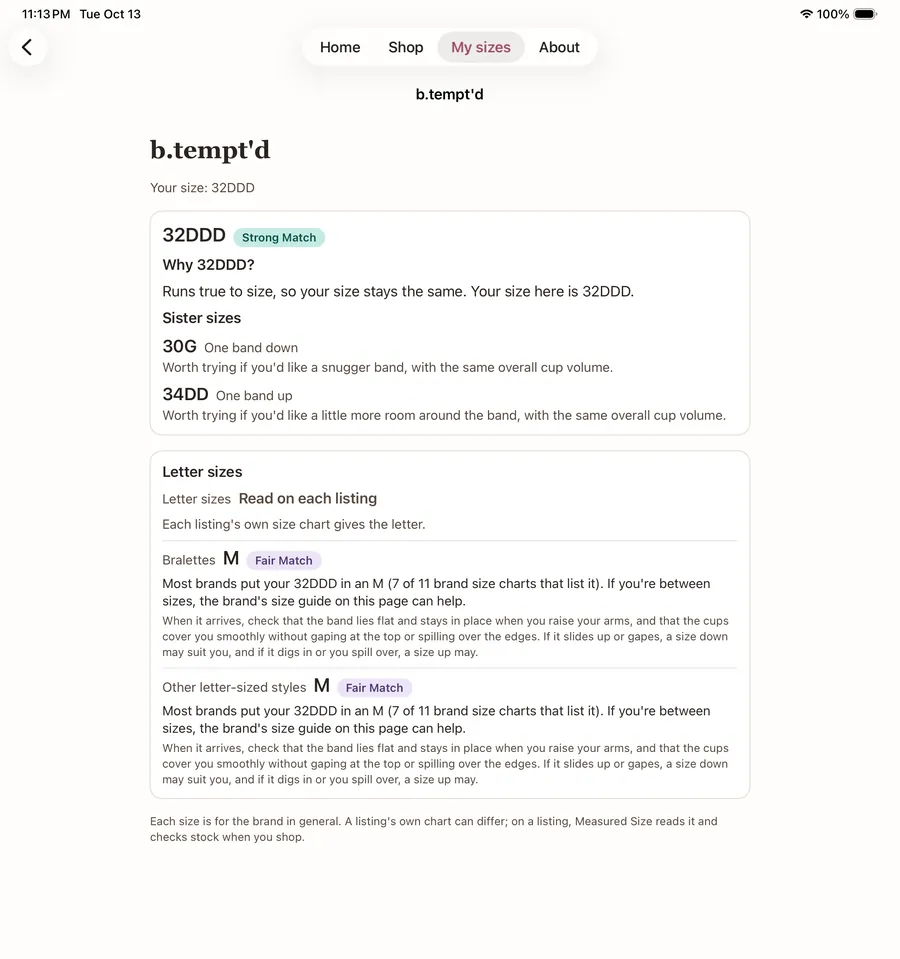
Each brand labels sizes its own way. The list shows your size in each brand's labels, and how sure Measured Size is.
-
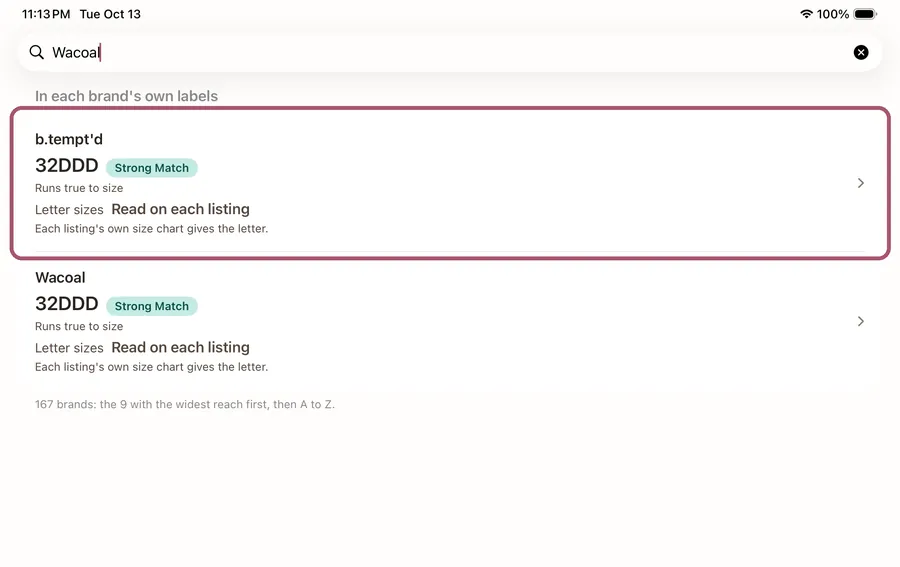
Type a brand's name in "Find a brand".
It finds the brand and the brands it makes: here "Wacoal" finds b.tempt'd, a Wacoal brand, first.
-
Tap a brand to see why, and your sister sizes.
A sister size has the same cup volume on a band one size smaller or larger. Worth trying when a band feels too tight or too loose.
Also use it in Safari
This part is optional: the Shop tab does everything above. Measured Size can also show your size in Safari, with a Safari extension: a small add-on that works inside Safari. You switch it on once. At the bottom of the Shop tab's stores, a card, "Also use Measured Size in Safari", offers the same steps. You can close it for good.
-
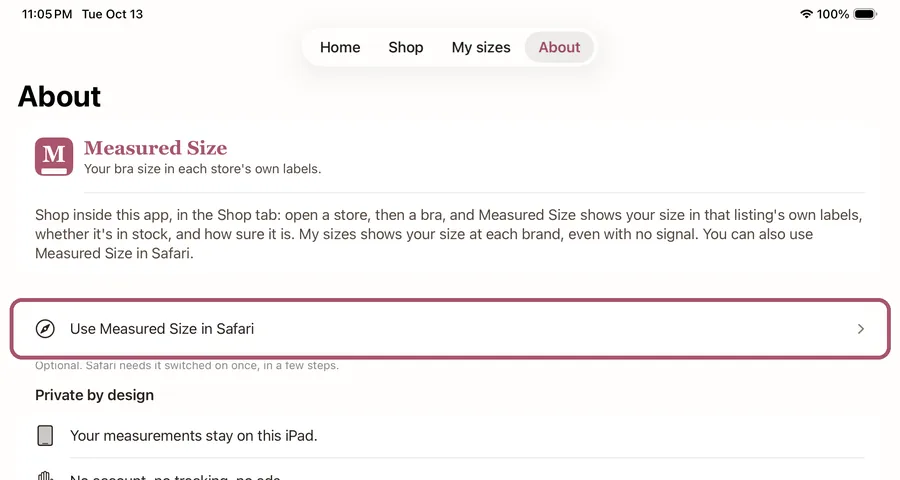
In the app's About tab, tap "Use Measured Size in Safari".
The app has these same steps, with their pictures.
Switch it on in Safari
If the app's first Safari step has a "Safari settings" button, follow the next three steps. If it doesn't (iOS 18 to 26.1), follow the box below them instead.
-
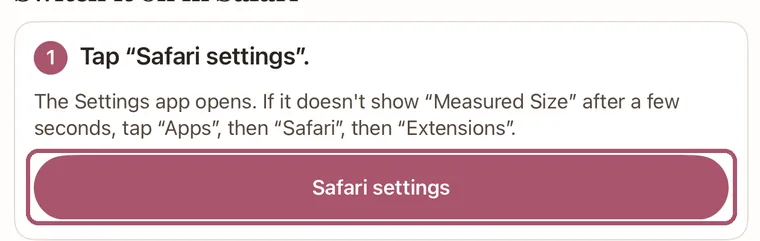
In the app, tap "Safari settings".
The Settings app opens. If it doesn't show "Measured Size" after a few seconds, tap "Apps", then "Safari", then "Extensions", as in the box below.
-
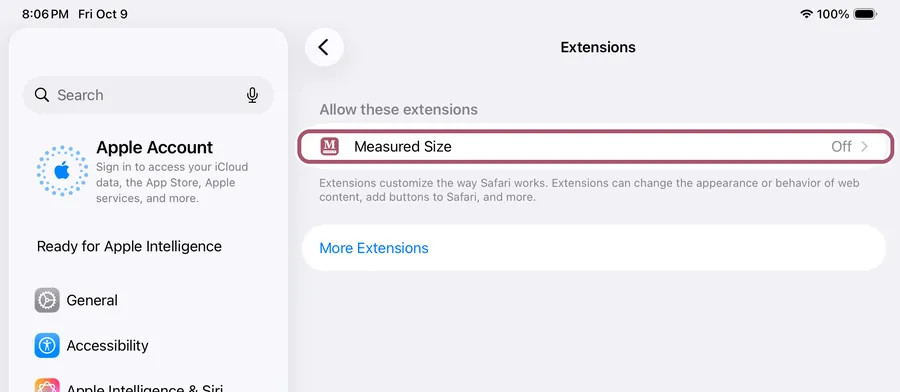
Tap "Measured Size".
-
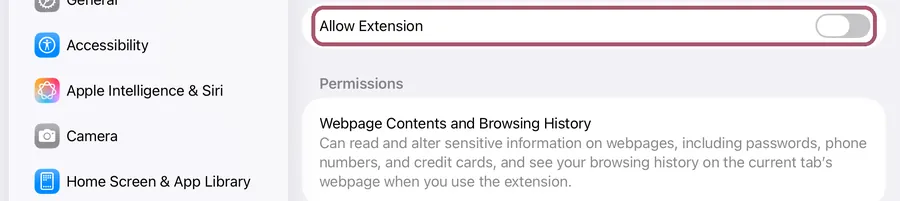
Turn on "Allow Extension".
The switch turns green. Under it, Safari lists what any extension could see, passwords and credit cards included. Measured Size reads only the bra listing you open it on, and sends nothing anywhere.
If there is no "Safari settings" button (iOS 18 to 26.1)
Go through Settings yourself:
-
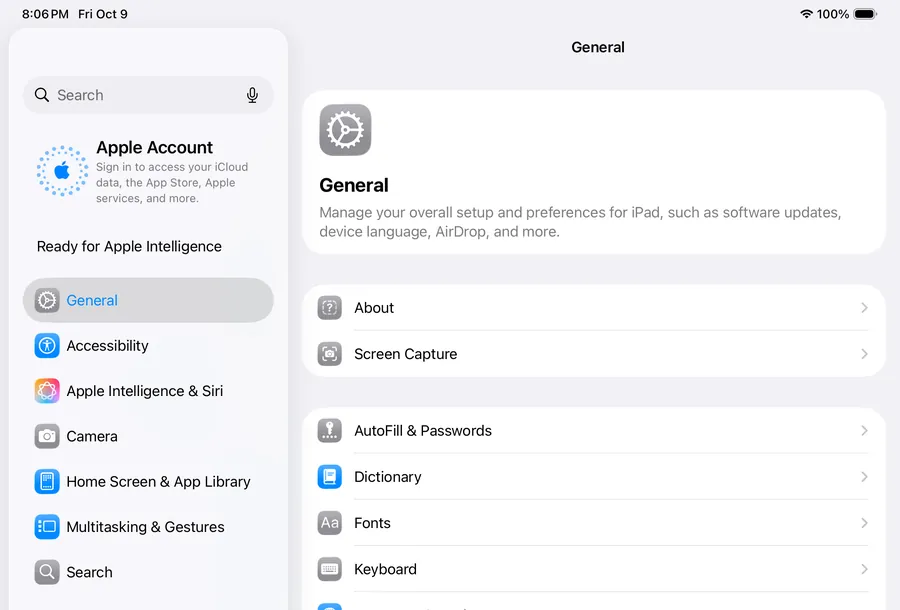
Open the Settings app.
Its icon is a gray gear on your Home Screen.
-
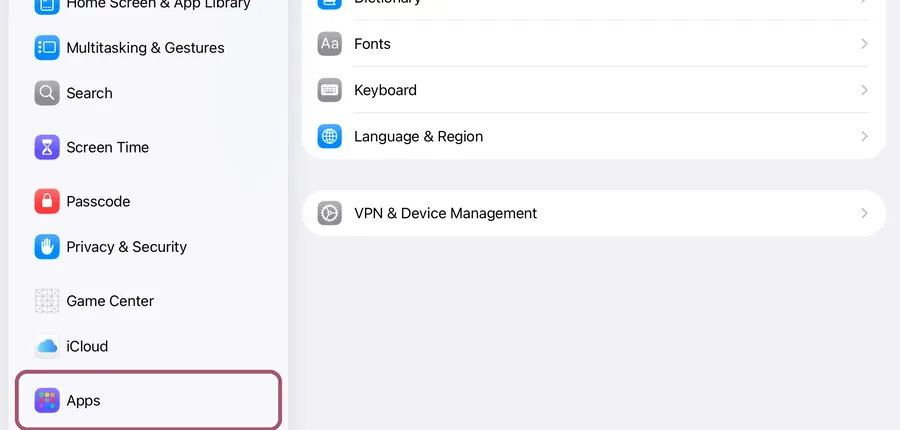
Tap "Apps", in the list on the left.
Scroll that list if you don't see it.
-
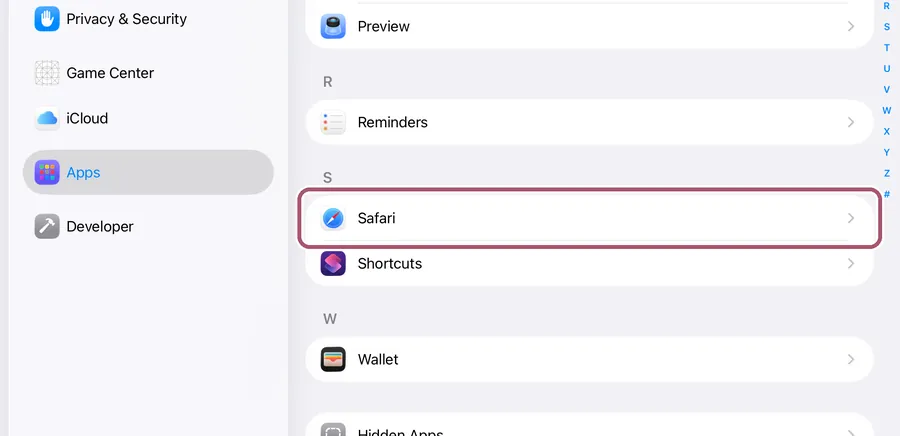
Scroll down and tap "Safari".
The apps are in A to Z order.
-
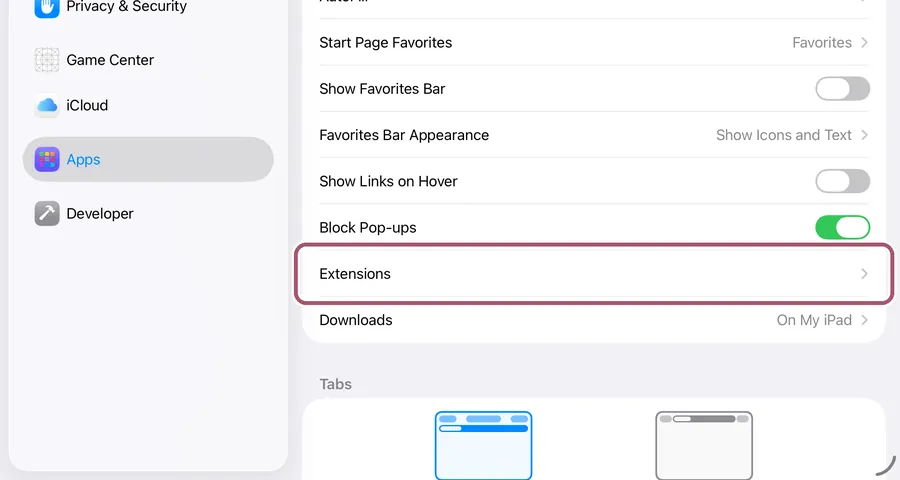
Scroll down and tap "Extensions".
-
Tap "Measured Size".
-
Turn on "Allow Extension".
The switch turns green. Under it, Safari lists what any extension could see, passwords and credit cards included. Measured Size reads only the bra listing you open it on, and sends nothing anywhere.
Allow it on two stores
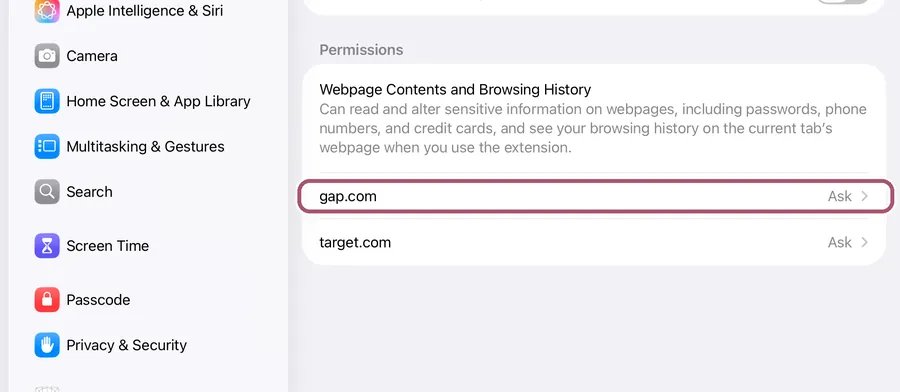
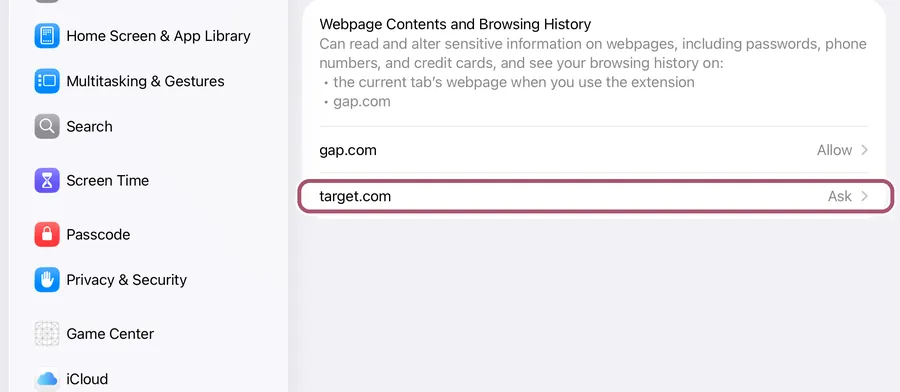
Two stores, gap.com and target.com, load their sizes as the page opens, so Measured Size needs to be allowed there first. Every other store only needs your tap.
-
On the same screen, scroll down and tap "gap.com".
-
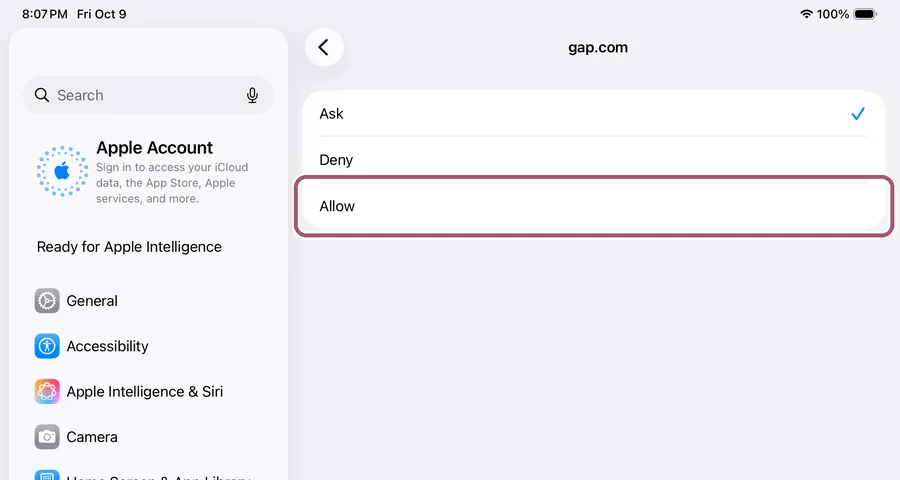
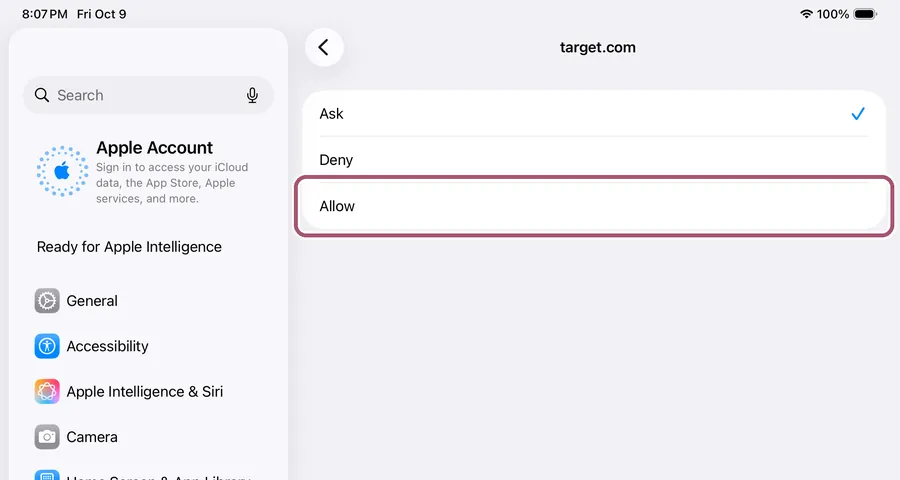
Tap "Allow".
-
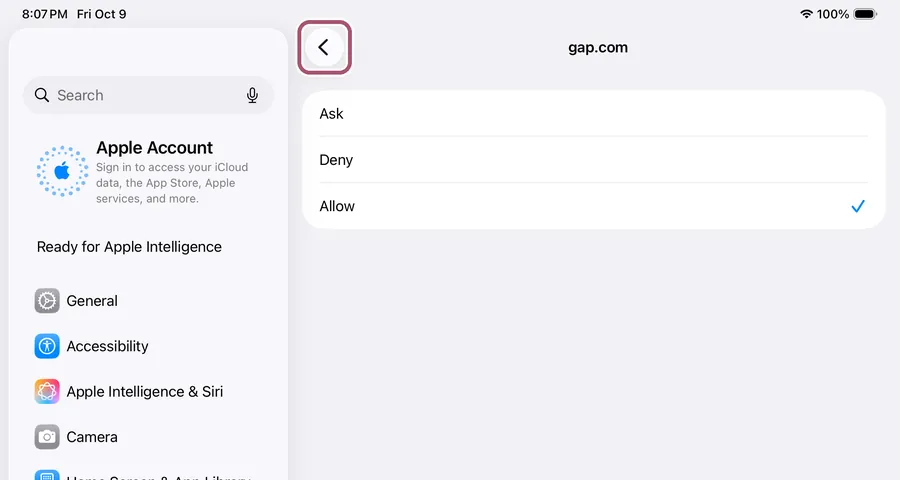
Tap the back arrow at the top of the right-hand side.
-
Tap "target.com".
-
Tap "Allow".
With "Allow", Measured Size reads Target's stock as the page loads, so the card can say whether your size is in stock.
See your size in Safari
-
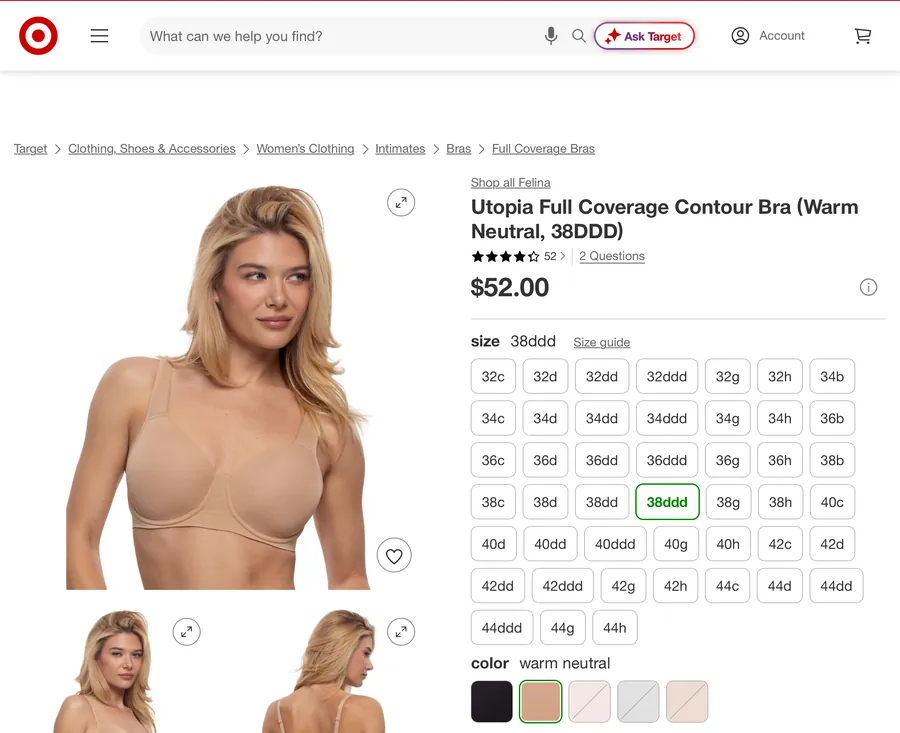
Go to your Home Screen, open Safari, and go to a bra's own page in a store.
A page for one bra, with its sizes, not a page of search results.
-
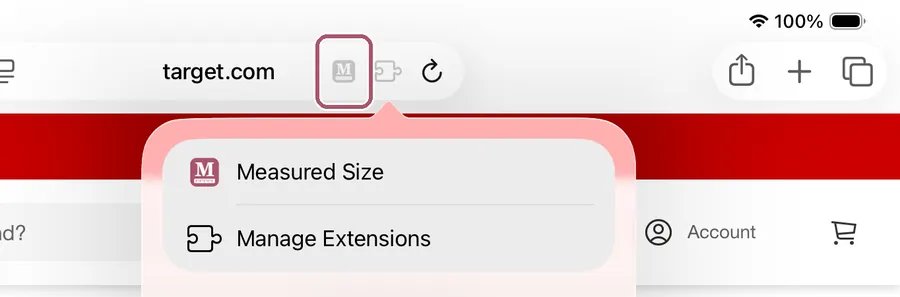
Tap the Manage Extensions button, the puzzle piece at the right end of the address bar.
If you see a pink M there too, you can tap that instead. In a narrow window, Safari puts Measured Size in the Page Menu instead, at the left end of the address bar.

-
Tap "Measured Size".
If you see an orange triangle beside it, Safari will ask you first. That's the next step.
-
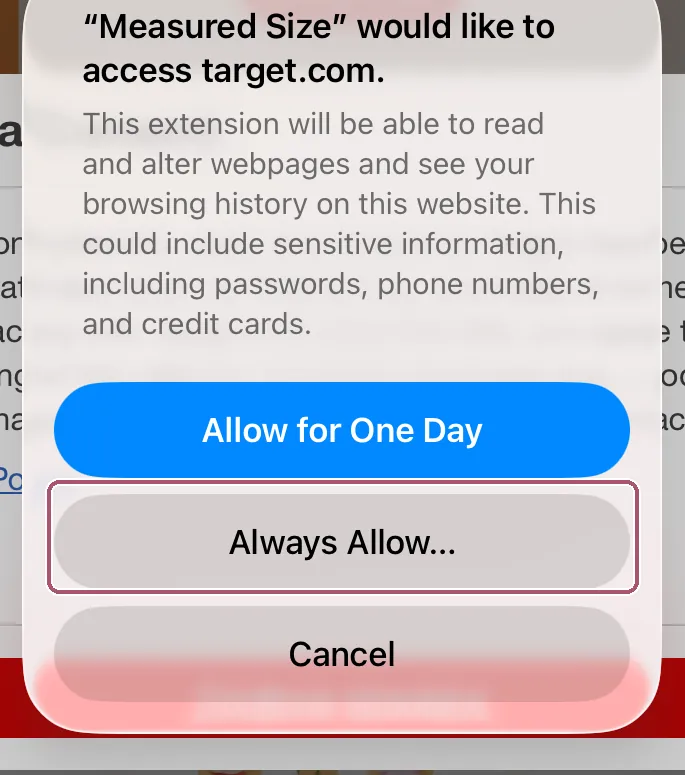
If Safari asks about the website, tap "Always Allow…".
Safari asks only on gap.com and target.com, and only if you didn't allow them in Settings. Here it asks about target.com.
-
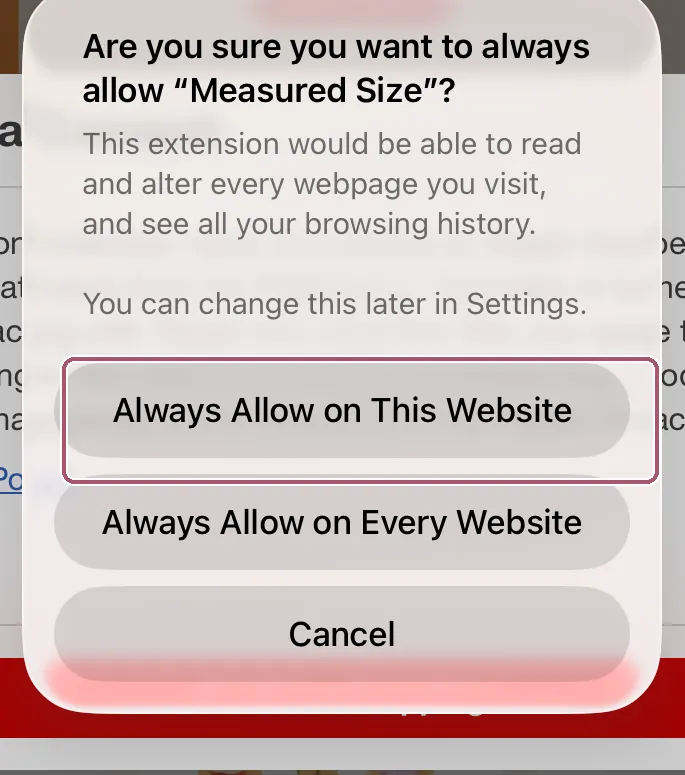
Then tap "Always Allow on This Website".
-
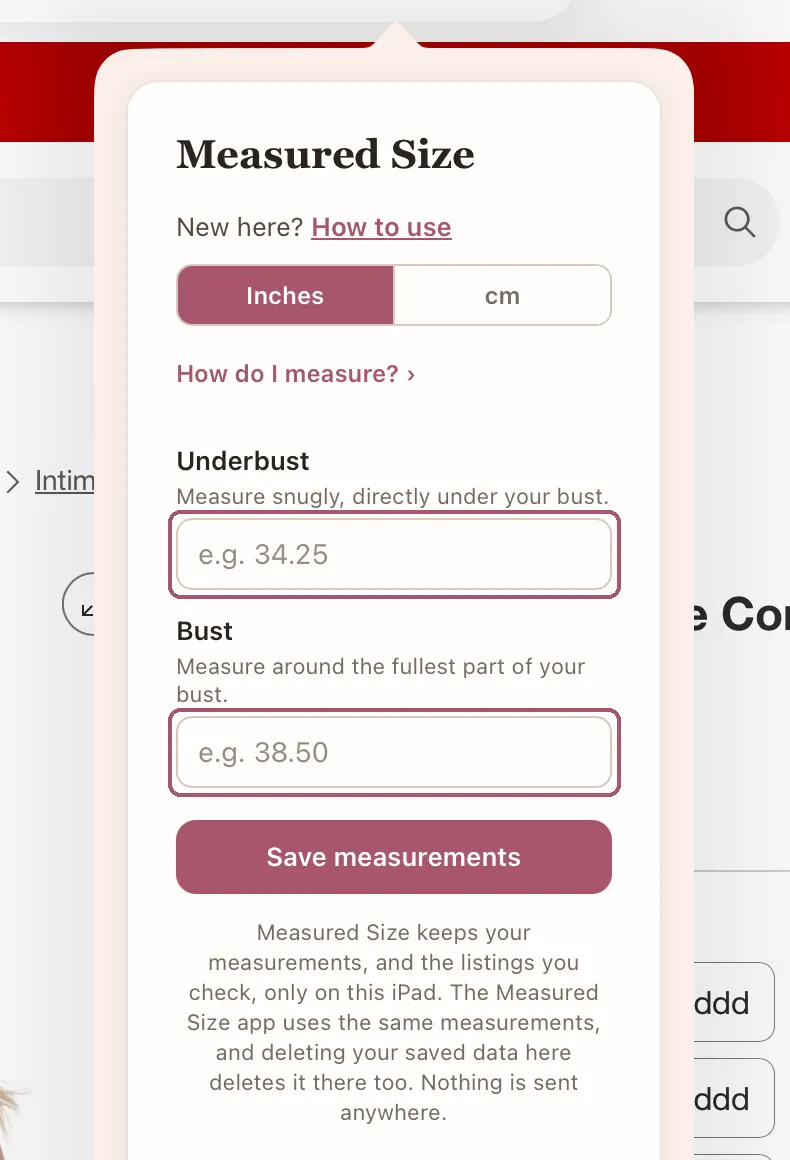
Type your underbust and your bust in their boxes.
Only the first time, and not at all if you saved them in the Measured Size app: Safari uses the same ones and shows your size. "How do I measure?", above the boxes, shows where to measure. If you measured in centimeters, tap "cm" at the top first. When you're done, put the keyboard away (the check mark or "Done" above it) to see the Save button.
-
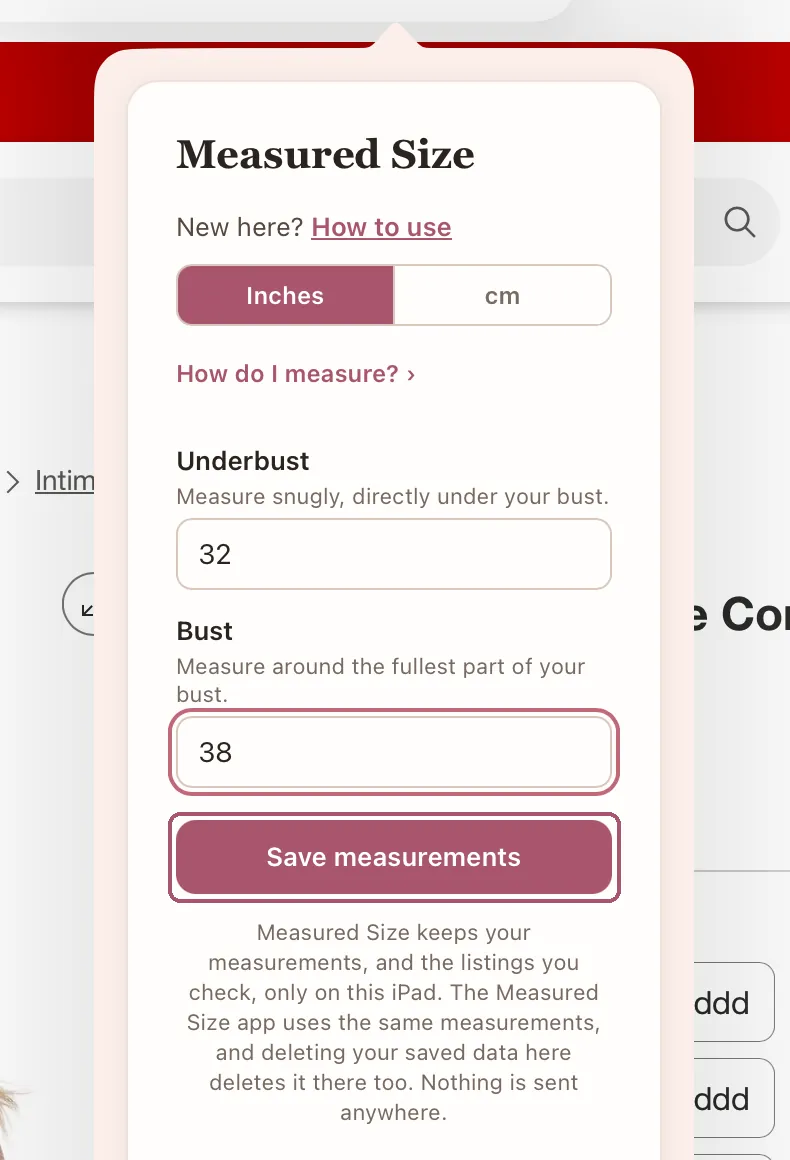
Tap "Save measurements".
It says "Measurements saved" for a moment, then shows your size.
-
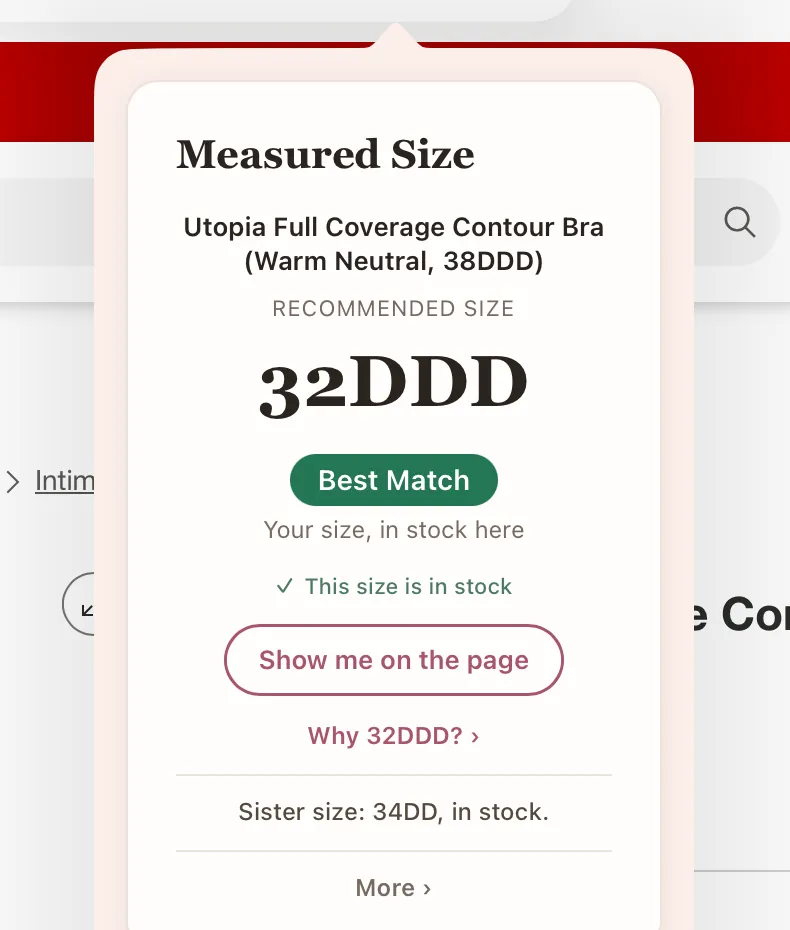
Read your size.
The big size is the one to choose on this listing, in the store's own labels. The rest of the card is explained on Reading the card. Tap the page beside the card to close it.
-
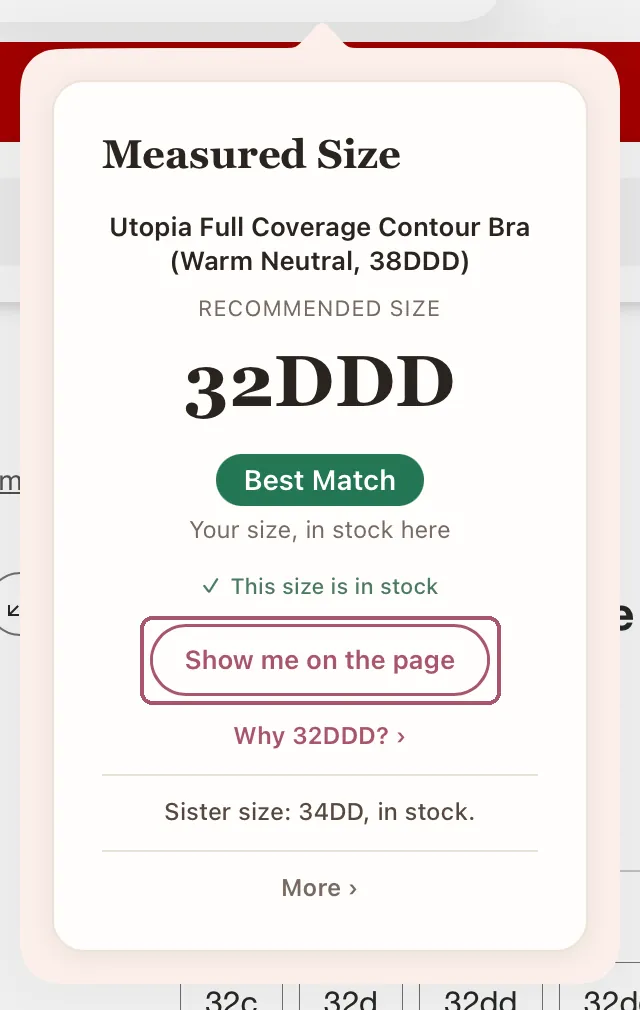
Tap "Show me on the page" to find your size on the store's page.
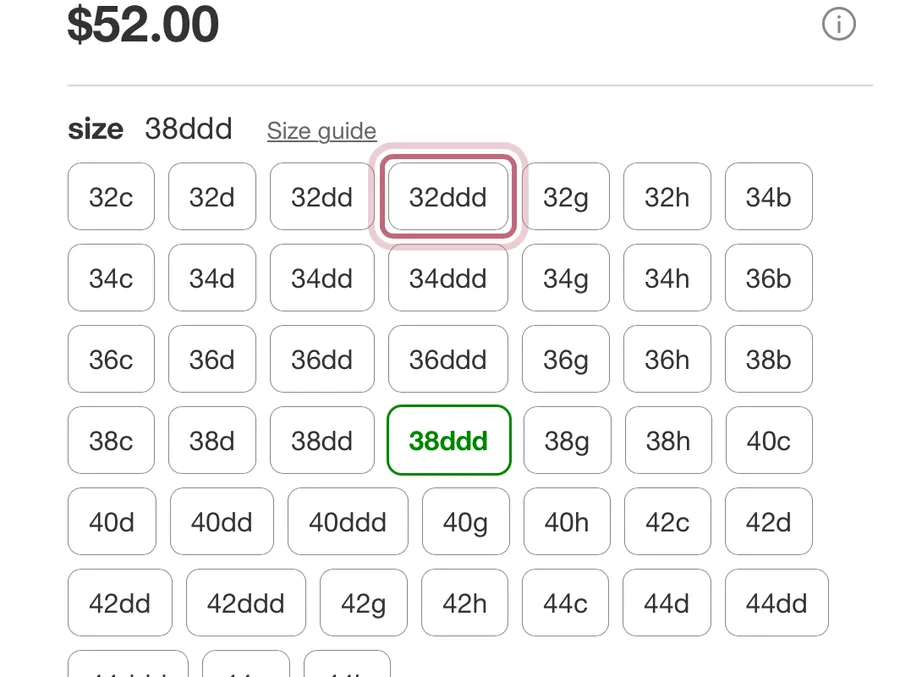
The card closes, and Measured Size outlines your size on the page for a few seconds. It never picks a size for you.
-
Look for the outline around your size on the page.
The size button on Target
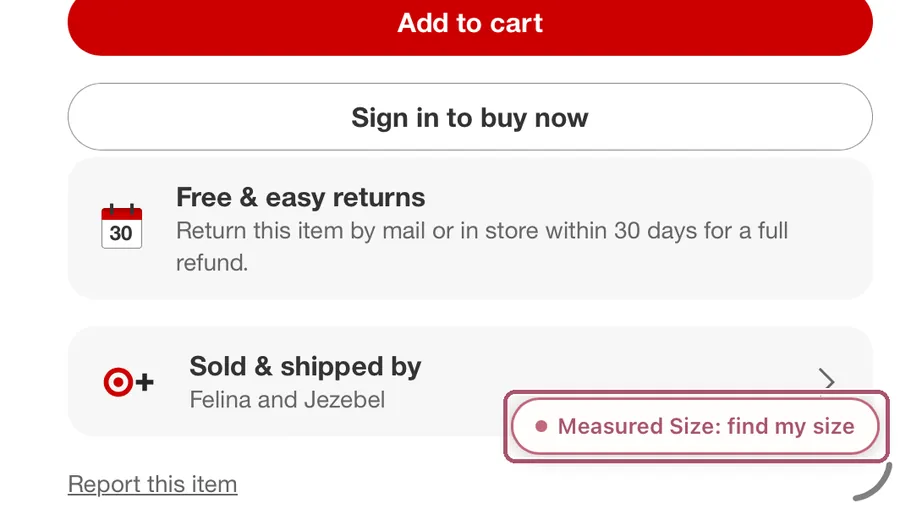
On Target's bra pages, a small pink button sits at the bottom of the page. It opens the same card, without going through Safari's menu.
-
Tap "Measured Size: find my size".
-
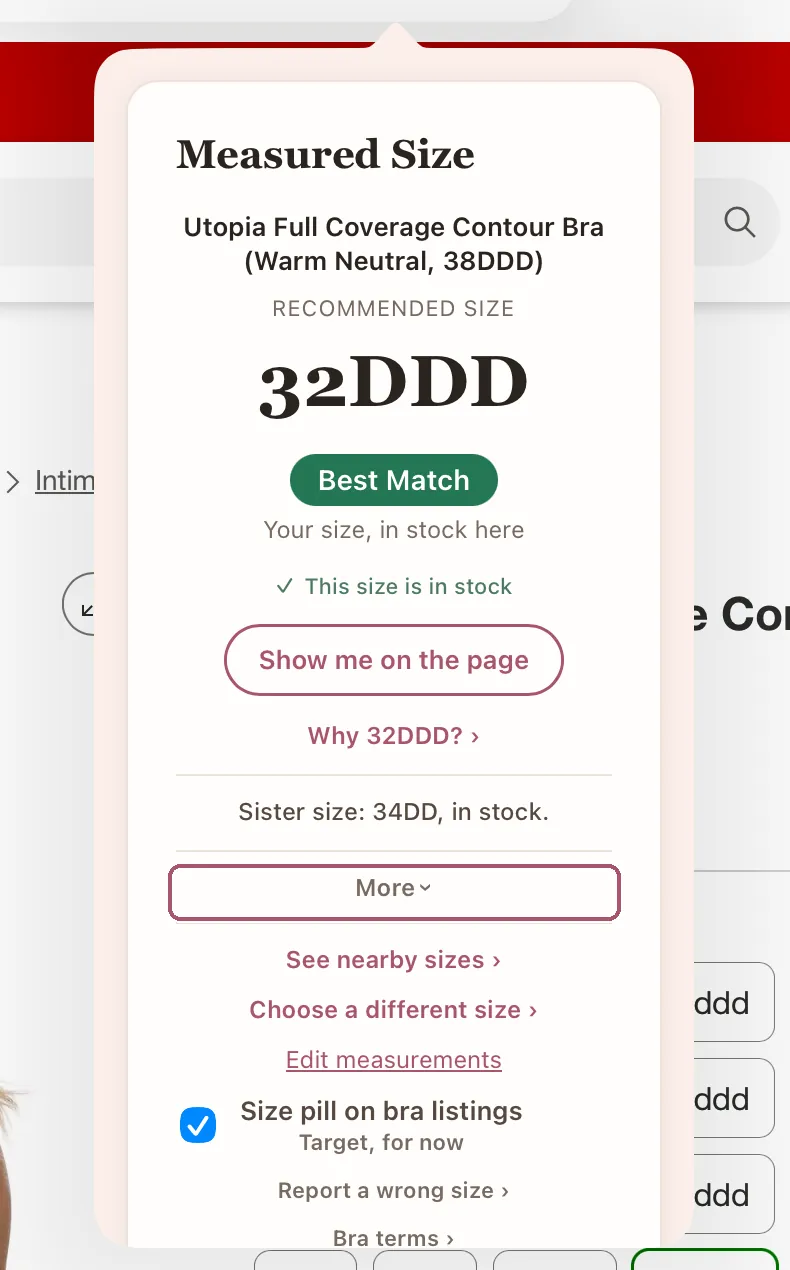
To turn the button off, tap "More" at the bottom of the card.
-
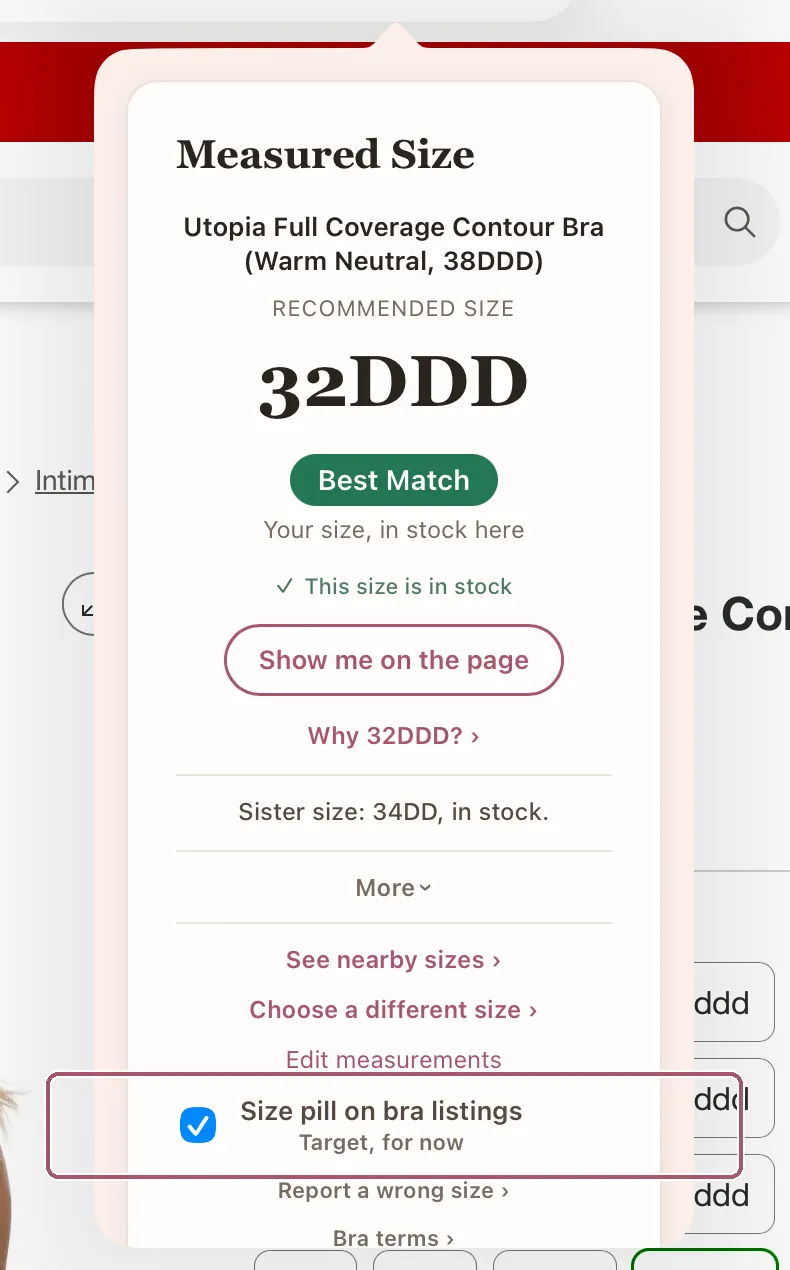
Untick "Size pill on bra listings".
That is the size button's switch. Tick it again to bring the button back.
Dark mode and larger text
-
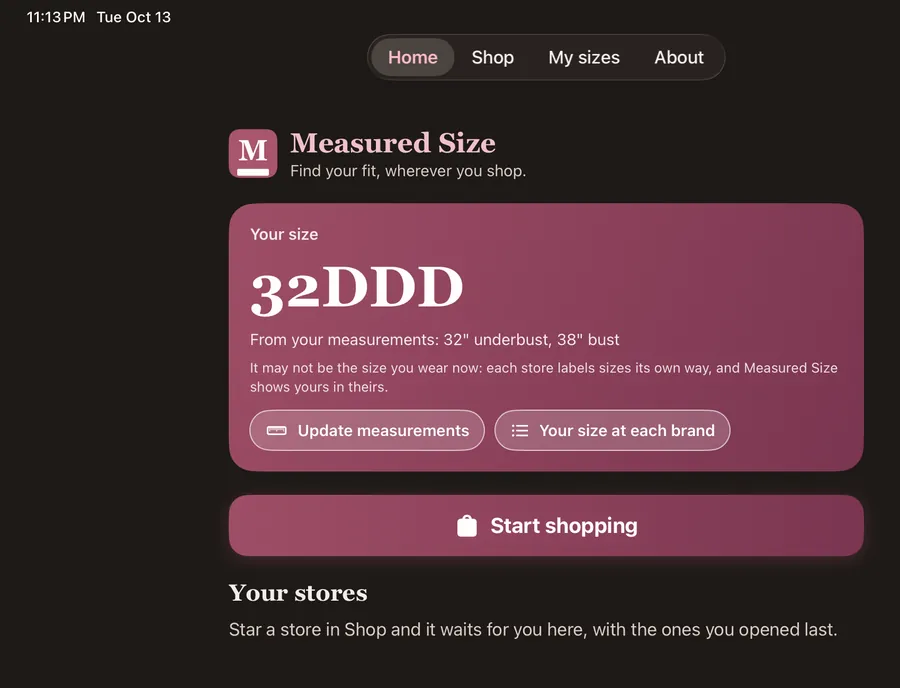
Use dark mode or larger text if you like.
Measured Size follows your iPad's own settings, in the app and in Safari. Change them in the Settings app, under "Display & Brightness".
Next time, open the app and tap a store, or open Measured Size from Safari's menu on any bra listing.
Stuck? See Something's not working, or write to support@measuredsize.com.
Other guides: Chrome · Firefox · iPhone · iPad · Android phone · Something's not working · Reading the card