Help › Something's not working
Something's not working
Short answers to what most often goes wrong. Each has a picture.
- I don't see the Measured Size button
- Safari asks for permission
- The card says it couldn't read this page
- The card says "Not available here"
- How do I change or delete my measurements?
- How do I report a wrong size?
I don't see the Measured Size button
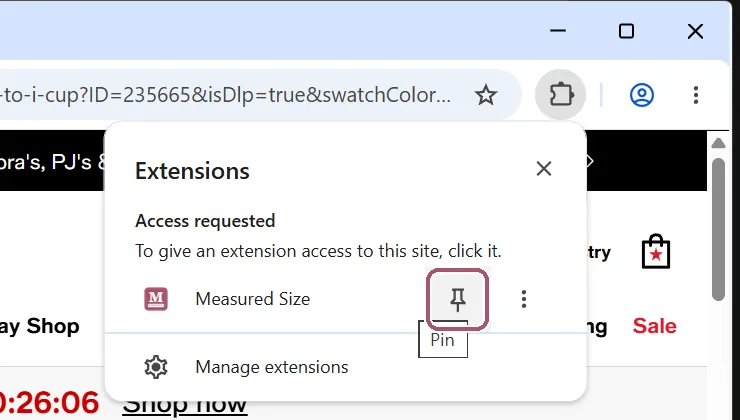
In Chrome on a computer, it may be behind the puzzle-piece button at the top right. Click the puzzle piece, then click the pin (a thumbtack) next to "Measured Size". See the Chrome steps.
In Firefox on a computer, click the puzzle piece at the top right, then the three dots next to "Measured Size", then "Pin to Toolbar". See the Firefox steps.
On an iPhone or iPad, open the Measured Size app and shop in its Shop tab: it needs no setup. In Safari, Measured Size is in Safari's menu once it is switched on in Settings: see the iPhone or iPad steps.
On an Android phone, it is in Firefox's menu, under "Extensions". It is not in Chrome: see the Android steps.
Safari asks for permission
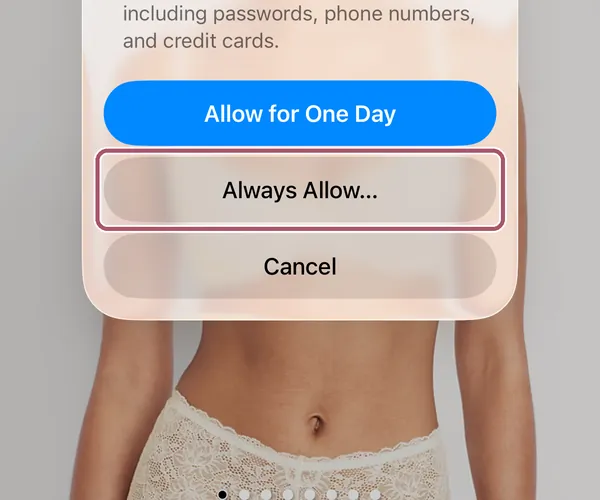
Safari asks before an extension can see a website. Tap "Always Allow…", then "Always Allow on This Website". Measured Size reads the listing only to show your size, and sends nothing anywhere.
Allowing gap.com and target.com in Settings first saves the question there: see "Allow it on two stores" in the iPhone or iPad steps.
The card says it couldn't read this page
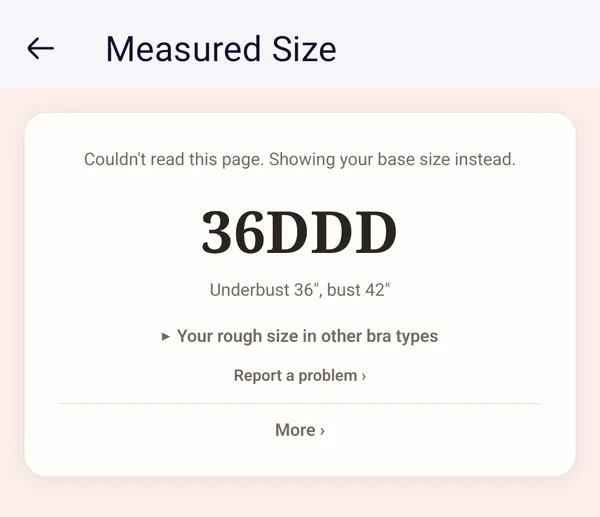
It says "Couldn't read this page" or "Couldn't read this listing", and shows your size from your measurements alone instead. On a page of search results, a category or a store's front page, it says "Open a bra to see your size."
Open one bra's own page, not a page of search results. Let the page finish loading, then open Measured Size again. On an Android phone, the second time usually works.
The card says "Not available here"
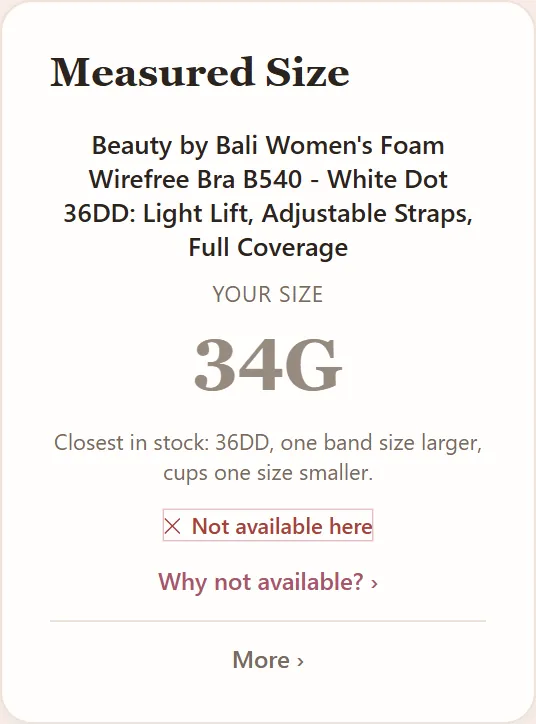
This store doesn't sell your size in this bra right now. The card names the closest size it does have in stock, and how it differs from yours. "Why?" says more.
When your sister size is in stock, the card shows that instead, and says so. You can try the closest size, look at another bra, or try another store. Measured Size says so rather than guess.
How do I change or delete my measurements?
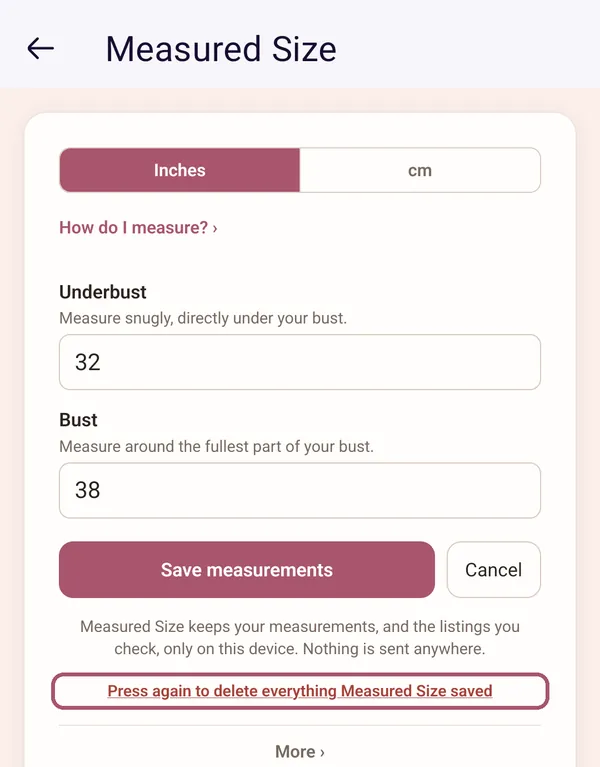
In the extension, open Measured Size, click or tap "More" at the bottom of the card, then "Edit measurements". Type the new numbers and click or tap "Save measurements".
To delete everything Measured Size saved, click or tap "Delete my saved data" at the bottom of the same screen. It changes to "Press again to delete everything Measured Size saved": click or tap it again.
In the iPhone and iPad app, tap "Update measurements" on Home. The app and Measured Size in Safari share the same measurements: change or delete them in one, and the other follows.
How do I report a wrong size?
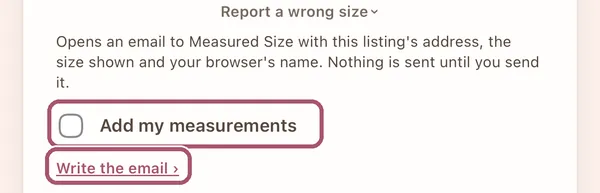
At the bottom of the card, open "More", then "Report a wrong size". Tick "Add my measurements" only if you want them in the email. Then click or tap "Write the email".
It opens an email to support@measuredsize.com in your own email app, with the listing's address, the size shown and your browser's name. Nothing is sent until you send it. On a card with no size, "Report a problem" is right on the card.
Other guides: Chrome · Firefox · iPhone · iPad · Android phone · Something's not working · Reading the card